A walk-through of Draft Bench in action. Each section pairs a short factual description with media captured from a real vault — five motion loops showing flows in real time, plus stills for state and configuration. The plugin handles the manuscript spine — projects, chapters, scenes, drafts, and compile — and stays out of plotting, entity management, and analytics.
New project#
The Create Project command opens a modal that collects a title and shape (chapter-based or single-scene). The project folder lands in the file explorer with stamped frontmatter on the project note (dbench-type: project, dbench-id, dbench-status), and the Manuscript view auto-reveals on the right ready to fill in.
Write#
The Manuscript view docks in the sidebar as a workspace leaf. Chapter cards expand to reveal scene rows. Scene titles open in new tabs via Cmd-click. The Reorder Scenes modal handles structural moves without dragging files around in the explorer. Word counts roll up live per chapter and per project as prose is added.
Versioned drafts#
A draft is a dbench-type: draft note — a snapshot of a scene, chapter, or single-scene project at a point in time. Captured via right-click → New draft of this scene, with a preview modal confirming the target path before the snapshot is taken. The resulting note opens with stamped frontmatter (dbench-scene, dbench-draft-number, and related properties), and the draft count surfaces back in the Manuscript view as a badge on the source scene.
Compile#
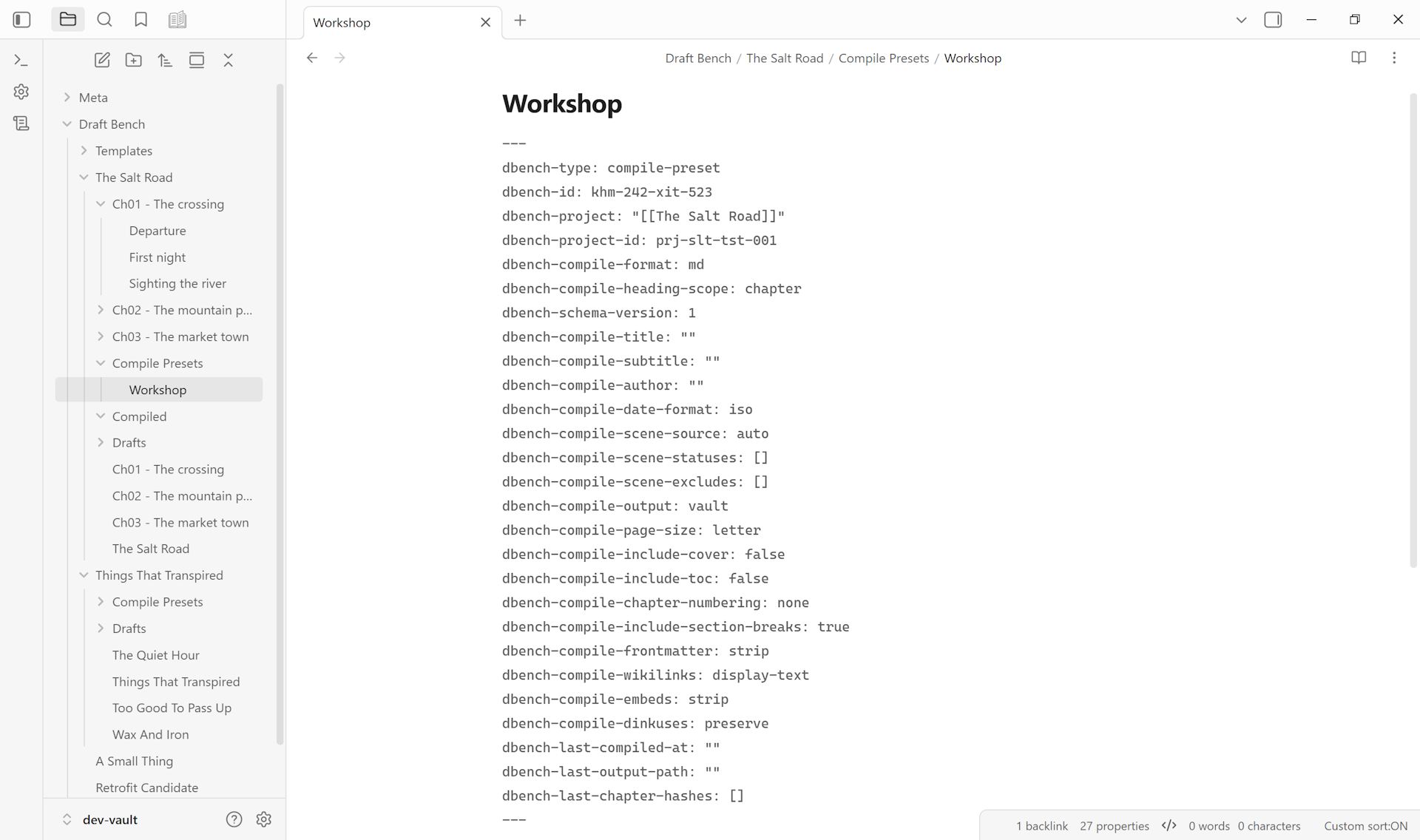
The Compile CTA in the Manuscript view opens the Manuscript Builder modal. Each preset is itself a dbench-type: compile-preset note with content-handling rules — frontmatter strip, heading scope, footnote renumbering, embed handling, dinkus normalization — editable in the Properties panel or the Compile tab. Run compile, and the resulting markdown manuscript opens in the active leaf.
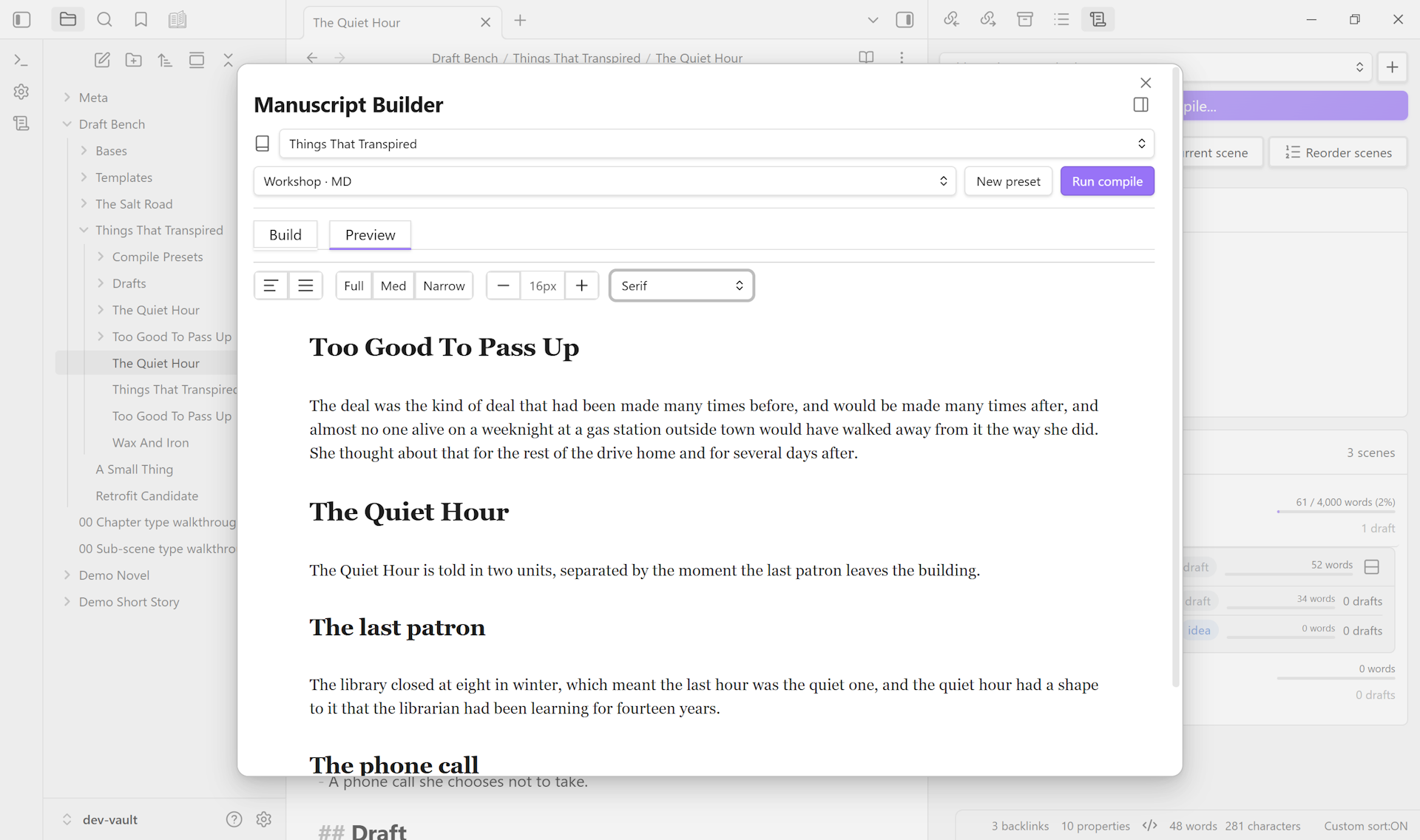
Compile preview, in-place#
A Preview tab in the Manuscript Builder renders the current preset’s compile output as continuous read-only prose, no real export file needed. Tweak settings on Build, flip to Preview, see the impact, iterate.
Dock the Builder as a workspace tab to keep Preview pinned next to a scene you’re editing. The leaf form re-renders as you save, debounced ~400ms; scroll position is preserved across re-renders so deep reading isn’t reset to the top.
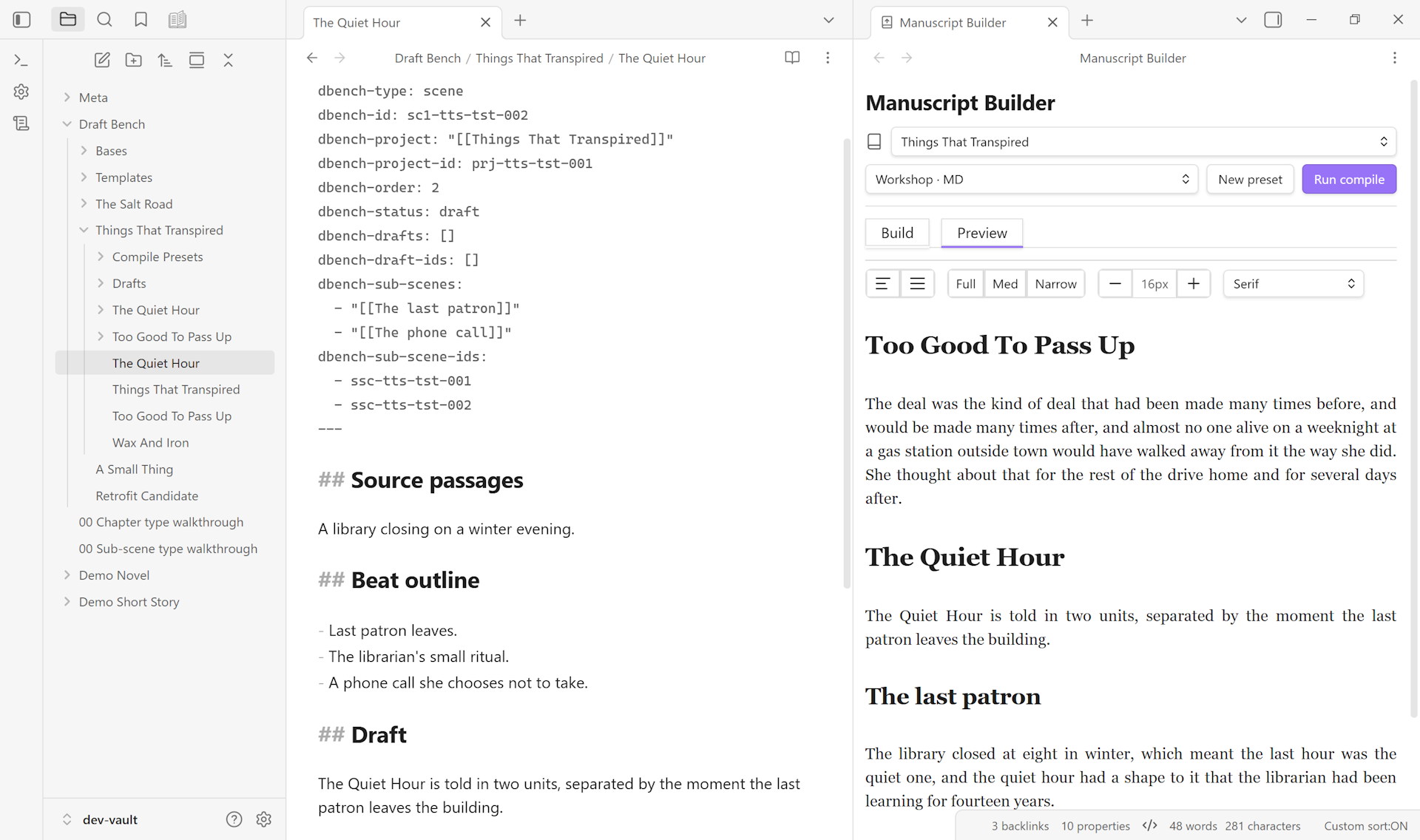
Both behaviors shipped in 0.3.x — Preview tab in 0.3.0, leaf form with file-save reactivity in 0.3.1.
Importing from Scrivener#
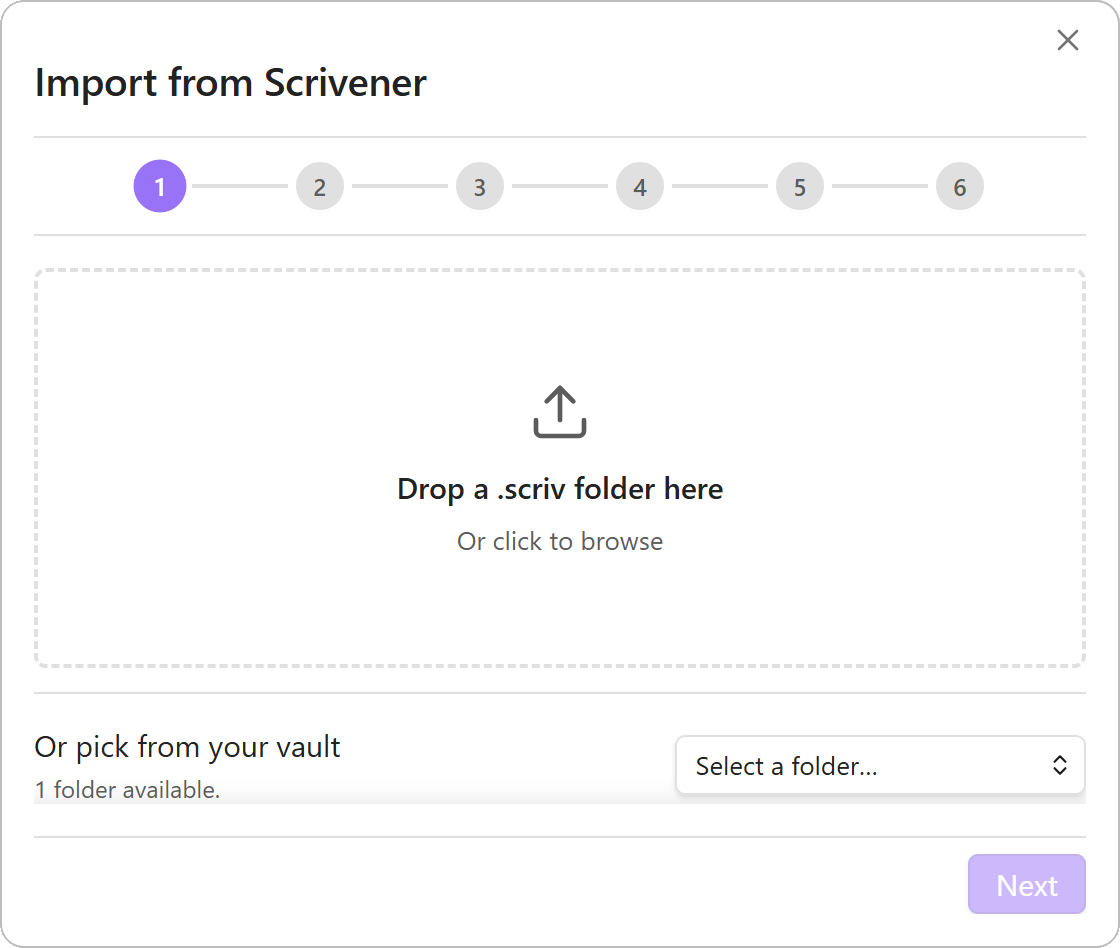
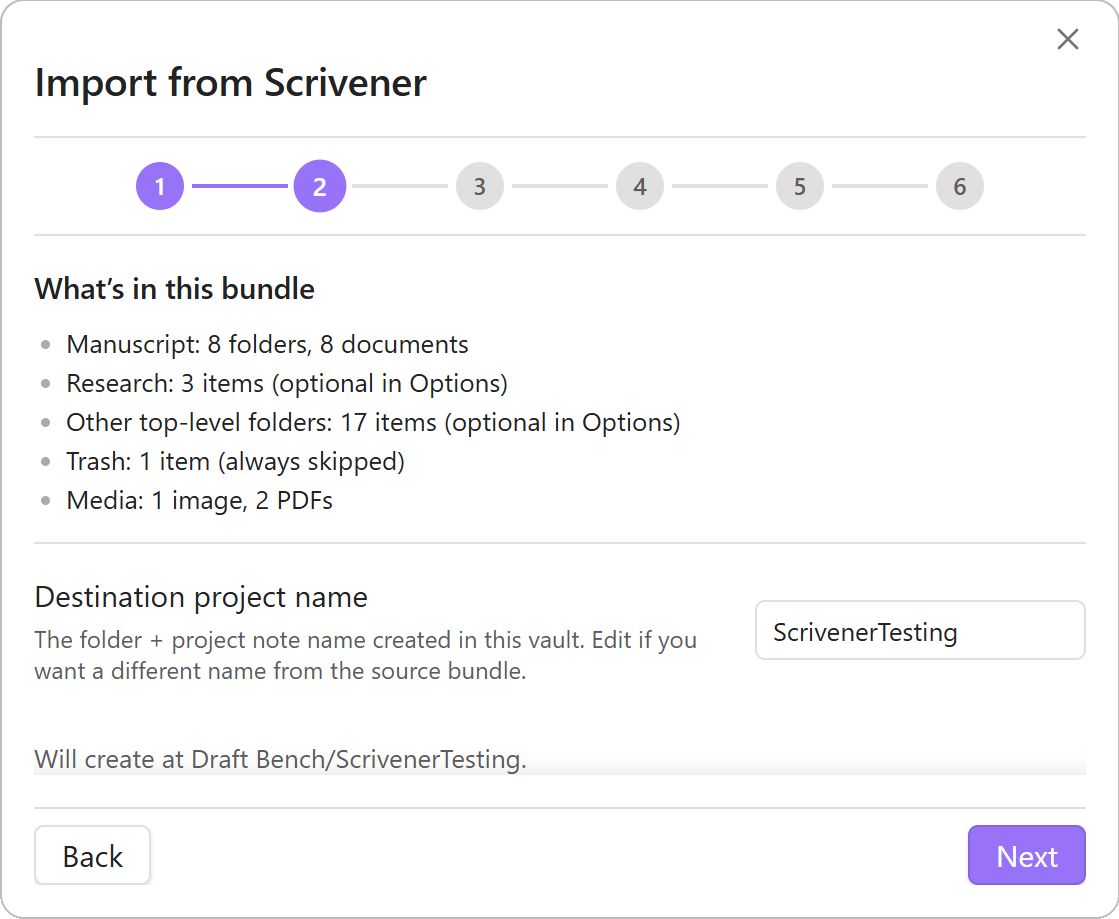
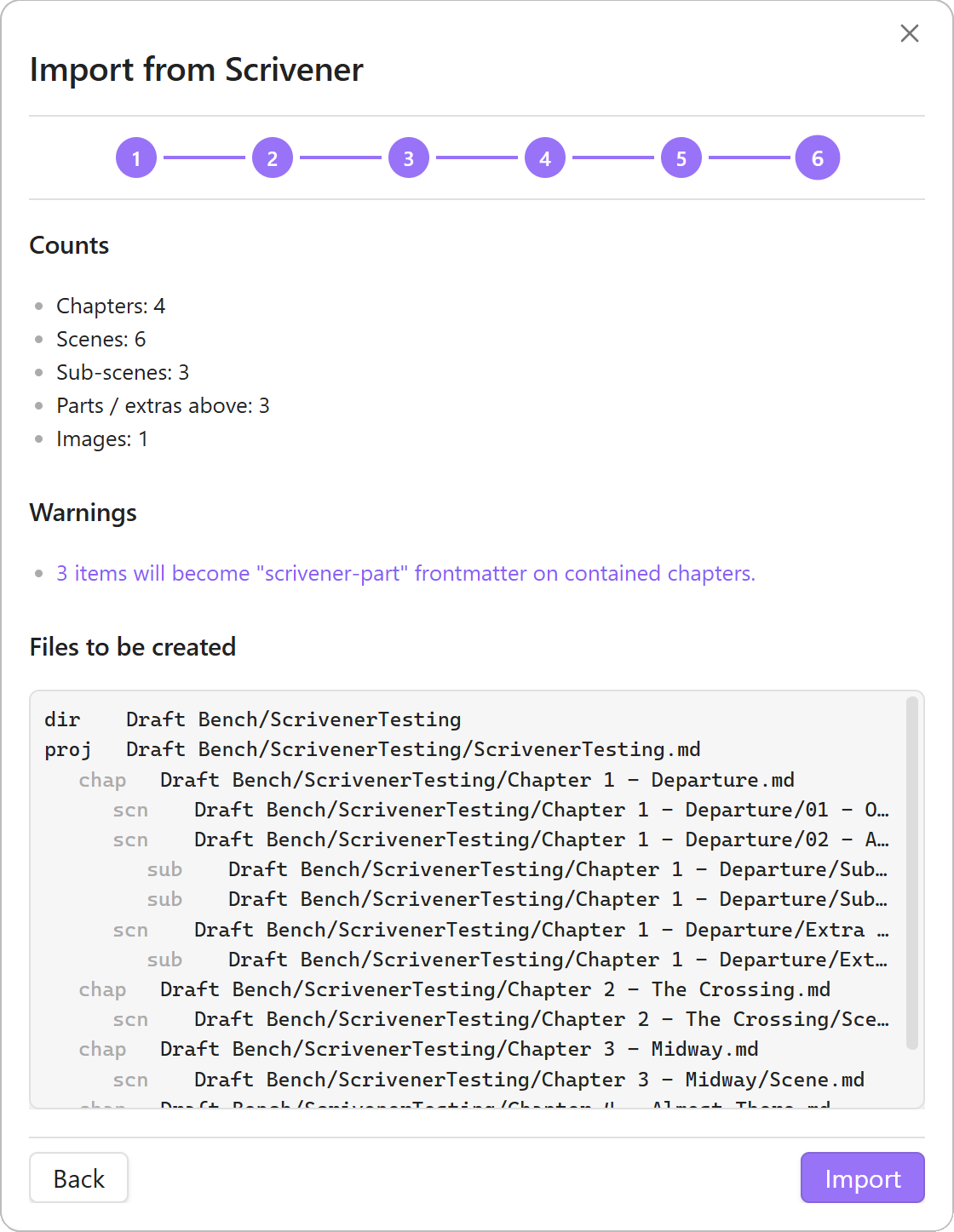
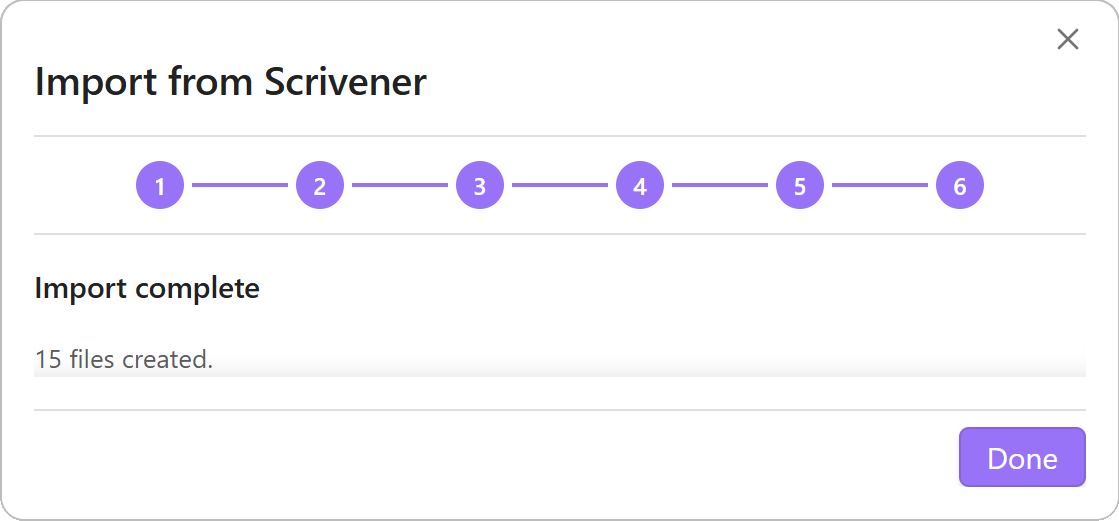
A multi-step wizard reads a Scrivener 3 project bundle from inside the vault and produces a fresh Draft Bench project. Chapters, scenes, sub-scenes, drafts, and inspector content all carry across; every mapping is reviewed in a Preview step before any file gets written.
What it does#
- Reads
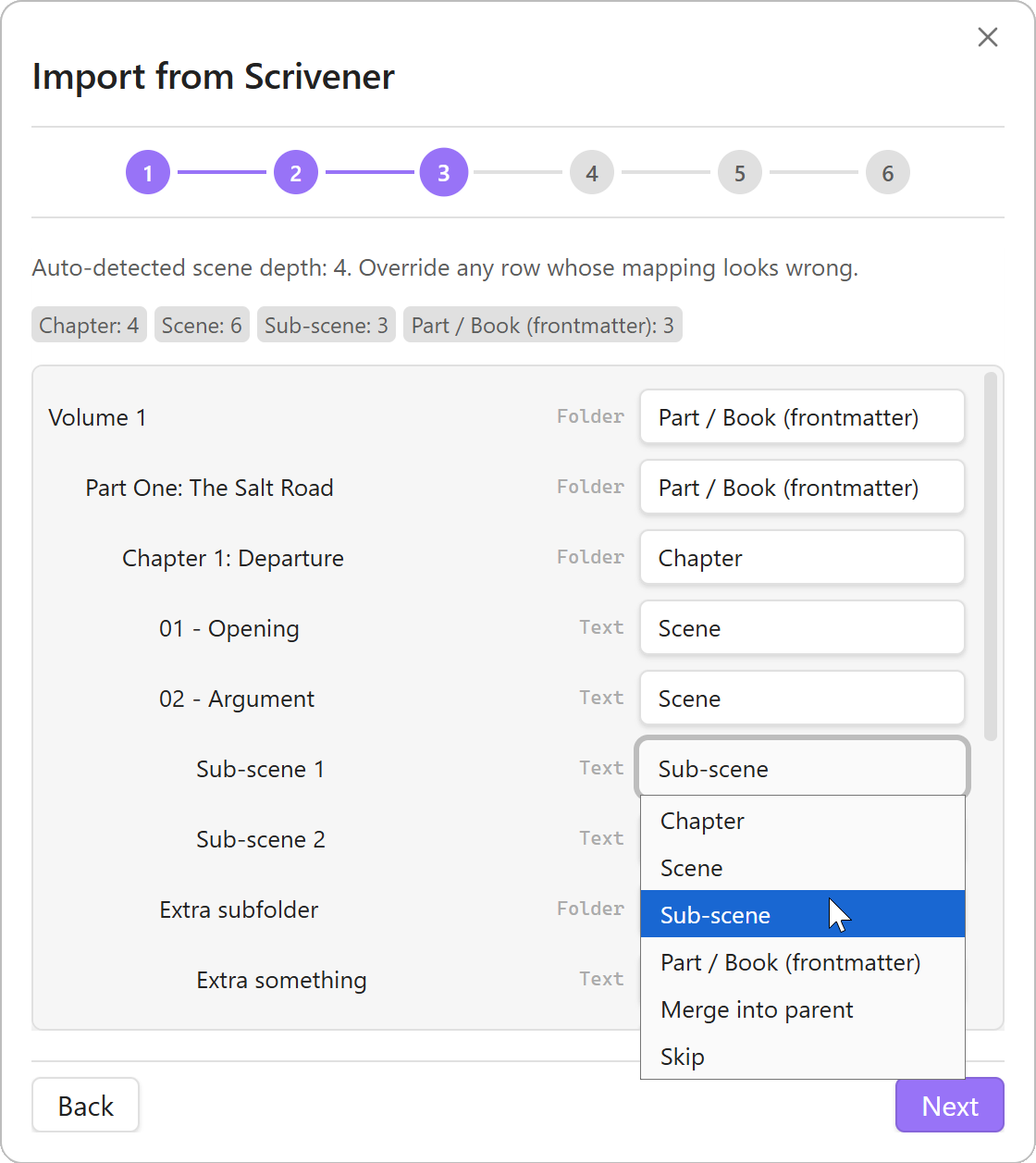
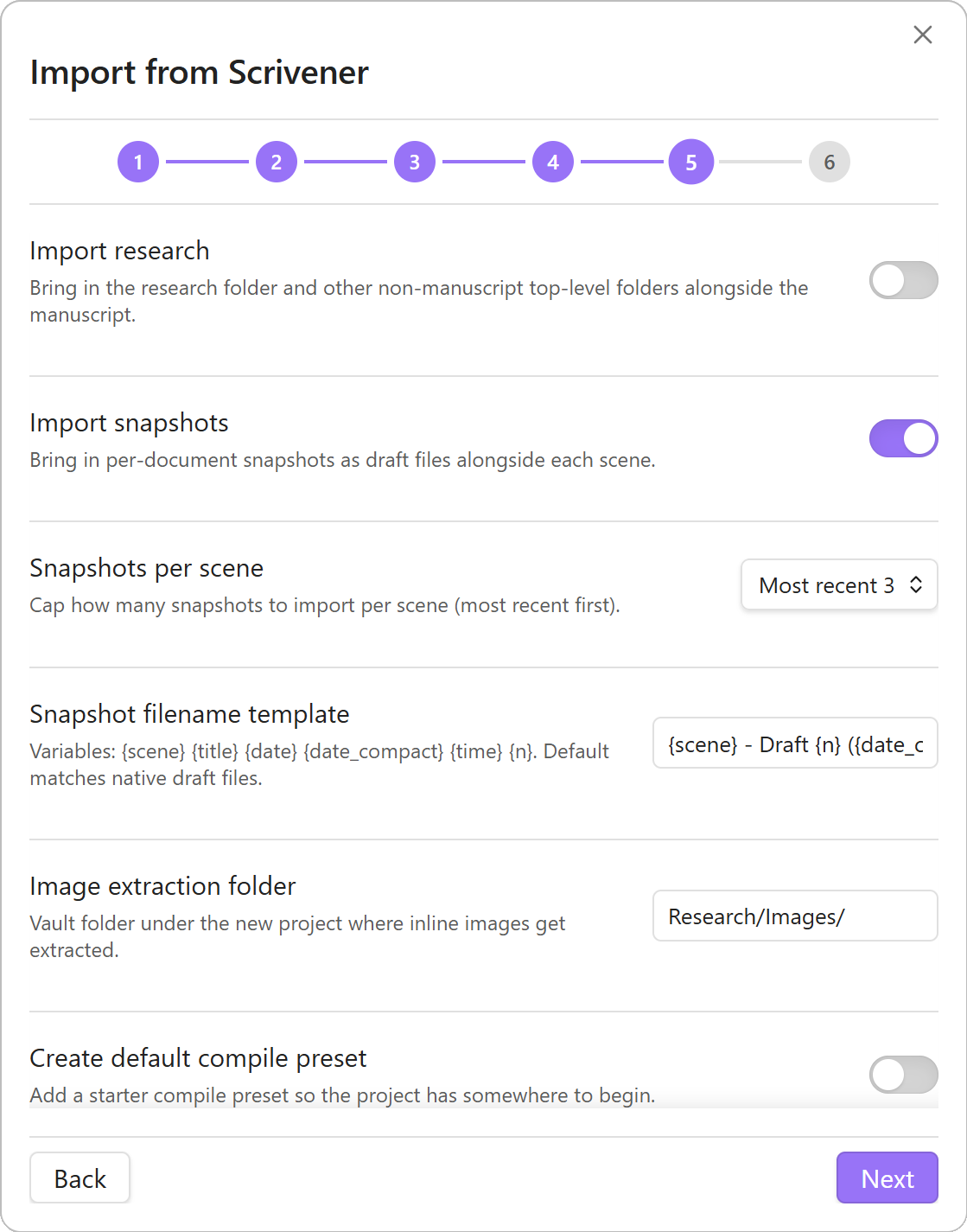
.scrivx+ RTF/RTFD bodies. Scrivener 3 binder hierarchy, document text, snapshots, and inspector content are parsed into an in-memory model. - Maps the binder to Draft Bench’s four levels. Auto-detection runs on parse: deepest leaves with prose -> scenes; immediate folder parents -> chapters; anything above the chapter level (Parts, Books, Volumes) becomes
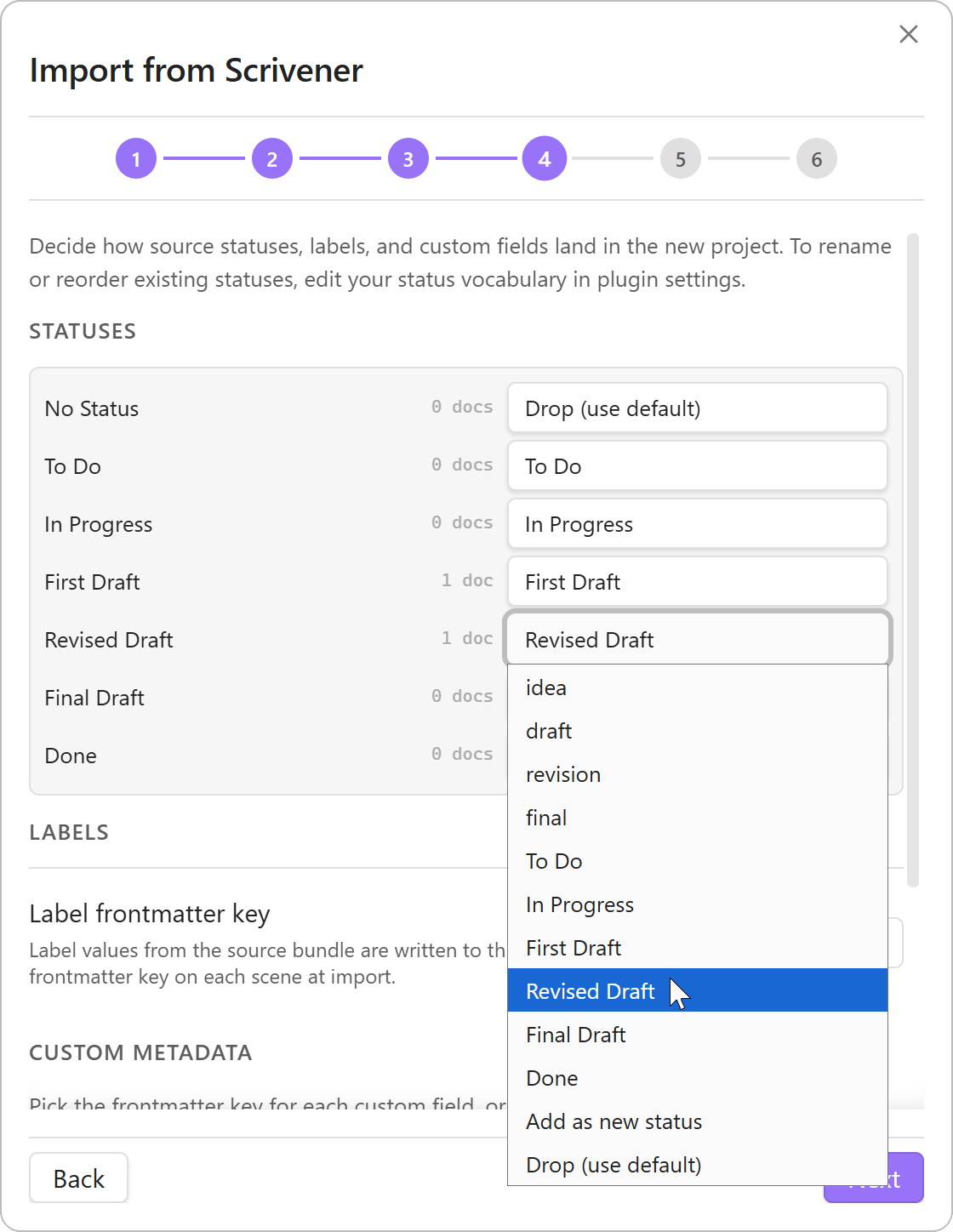
scrivener-partfrontmatter on the chapters they contain; sub-sub-scenes concatenate as nested headings inside the parent sub-scene. A per-row override dropdown surfaces in the Hierarchy Mapping step for any auto-detection that doesn’t fit. - Routes statuses, labels, and custom metadata interactively. Scrivener statuses match against Draft Bench’s status vocabulary; unmatched rows can add to the vocabulary or drop. Labels go to a writer-named frontmatter key (default
scrivener-label). Custom metadata routes per-field with type-aware coercion: Checkbox to boolean, List to resolved option title, Date to ISOYYYY-MM-DD, Text to raw string. - Converts RTF bodies to markdown. Italics, bold, lists, smart quotes, em-dashes, footnotes (inline + inspector), comments (rendered as Obsidian
%% %%syntax at the original anchor), inline images (extracted toResearch/Images/), and cross-document Scrivener Links (rewritten to wikilinks via a UUID-to-path map) all carry across. Complex RTF tables fall back to inline HTML and are flagged in the import error log. - Optional snapshot import. Per-document Scrivener snapshots become
dbench-type: draftfiles alongside each scene. Per-scene cap (1 / 3 / 5 / All); filename template with variables{scene}{title}{date}{date_compact}{time}{n}. Original Scrivener title preserved asscrivener-snapshot-titlefrontmatter regardless of whether{title}appears in the template. - Optional Research import. The Research folder and any other non-manuscript top-level folders carry across with hierarchy preserved verbatim. Templates and Trash are always skipped.
- Cross-platform. The importer reads via Obsidian’s vault adapter on every supported OS. Mobile users (Android verified; iOS / iPadOS untested) get the same wizard and the same write pass.
What V1 doesn’t do#
- Scrivener 2 and iOS Scrivener formats. Different schema and bundle structure. Re-add as separate parser paths post-V1 if a contributor surfaces with a project to test against.
- Reading
.scrivbundles from outside the vault. Copy the bundle into the vault first. The wizard’s Source step can do the copy on most platforms via drag-drop or the device picker. - Compile-format translation. Scrivener compile presets don’t map cleanly to Draft Bench compile presets. Build your DB presets from scratch after import.
- DB -> Scrivener export. No demand for the reverse direction.
Full walkthrough, mapping reference, and troubleshooting at the wiki page.
Bases-native discovery#
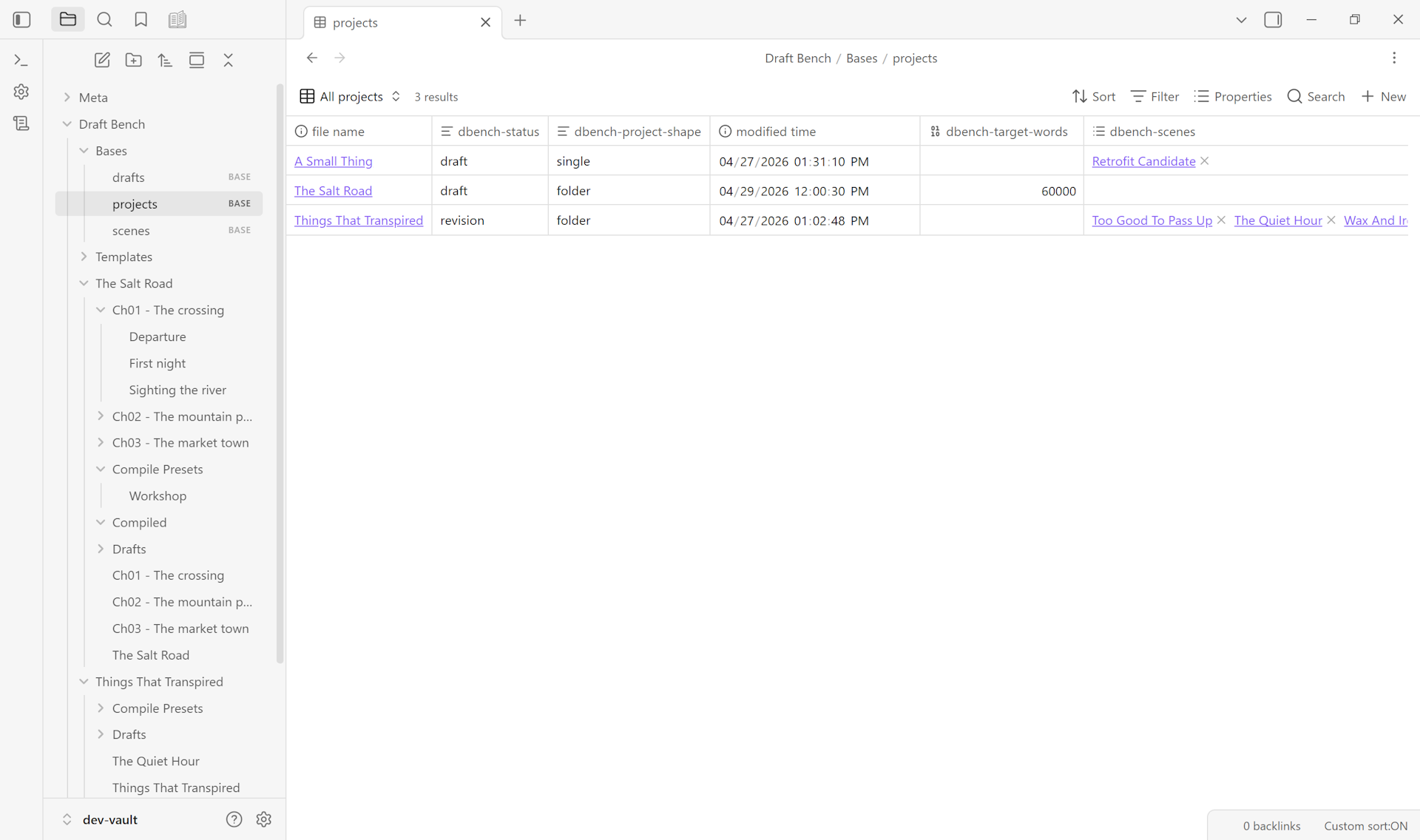
Starter .base views ship for projects, scenes, and drafts. Filter, group, and surface your manuscript with the same Bases setup you use for everything else in your vault — no plugin-specific query language, no parallel data store.
Integrity#
The plugin maintains stable IDs and reverse-link arrays as the vault changes. When state drifts — a renamed scene, a deleted chapter, an out-of-band frontmatter edit — the Repair project links modal scans for inconsistencies and lists each issue with auto-repairable and manual-review counts. Auto-repairs run in batch on click; the leaf carrying the project is forward-ref-driven and reflects the repaired state once the modal closes.
Theming#
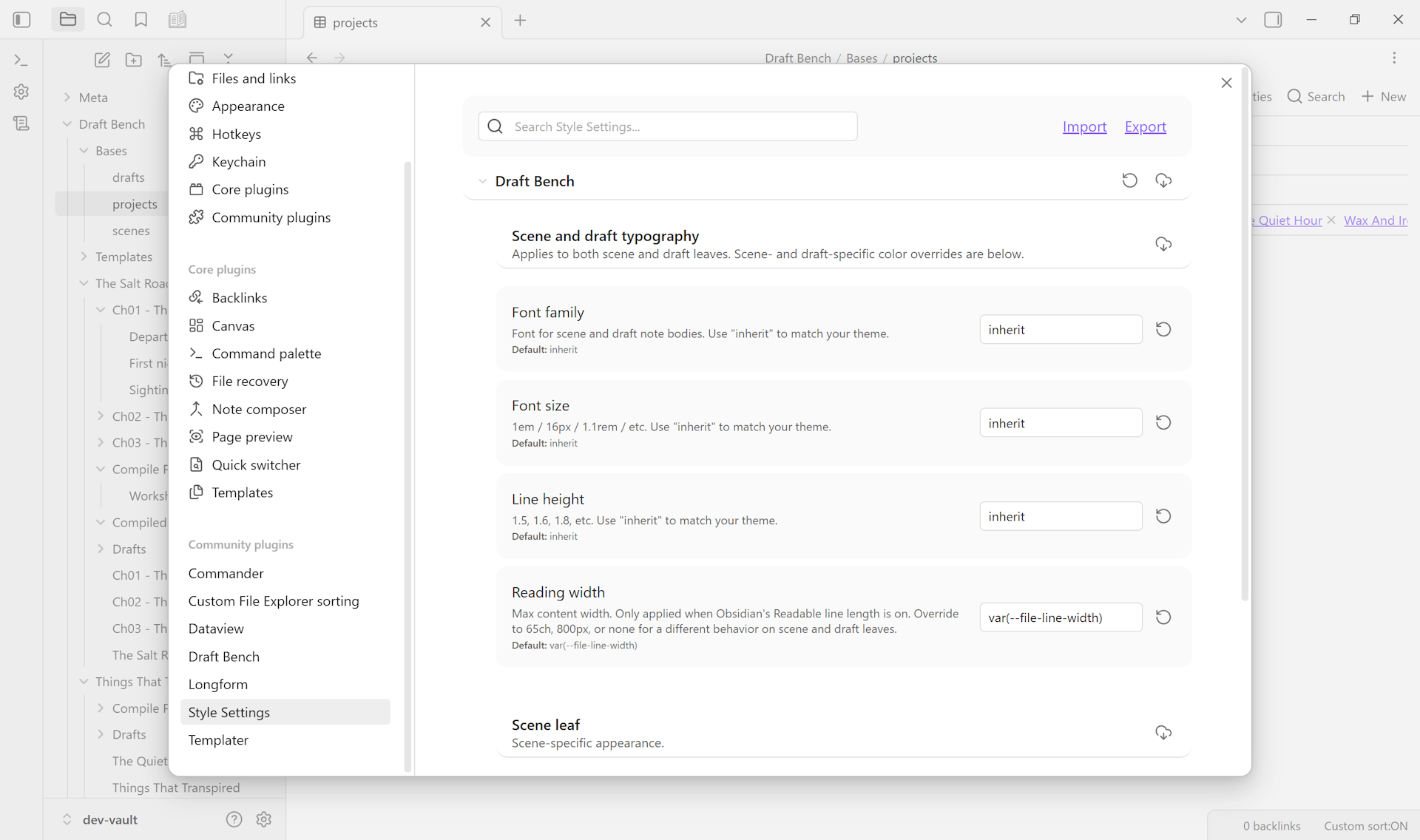
Class hooks and minimum defaults; Style Settings exposes per-component variables for opt-in customization. The plugin doesn’t impose chrome on writers who customize their vault’s appearance.